WordPress page builder
WPHaussmann
Build pages visually, on the real page, with any theme. This guide covers installation, the editor, the 67 elements, the 120 templates, headers and footers, global styles, the AI assistant and the import of WPBakery pages.
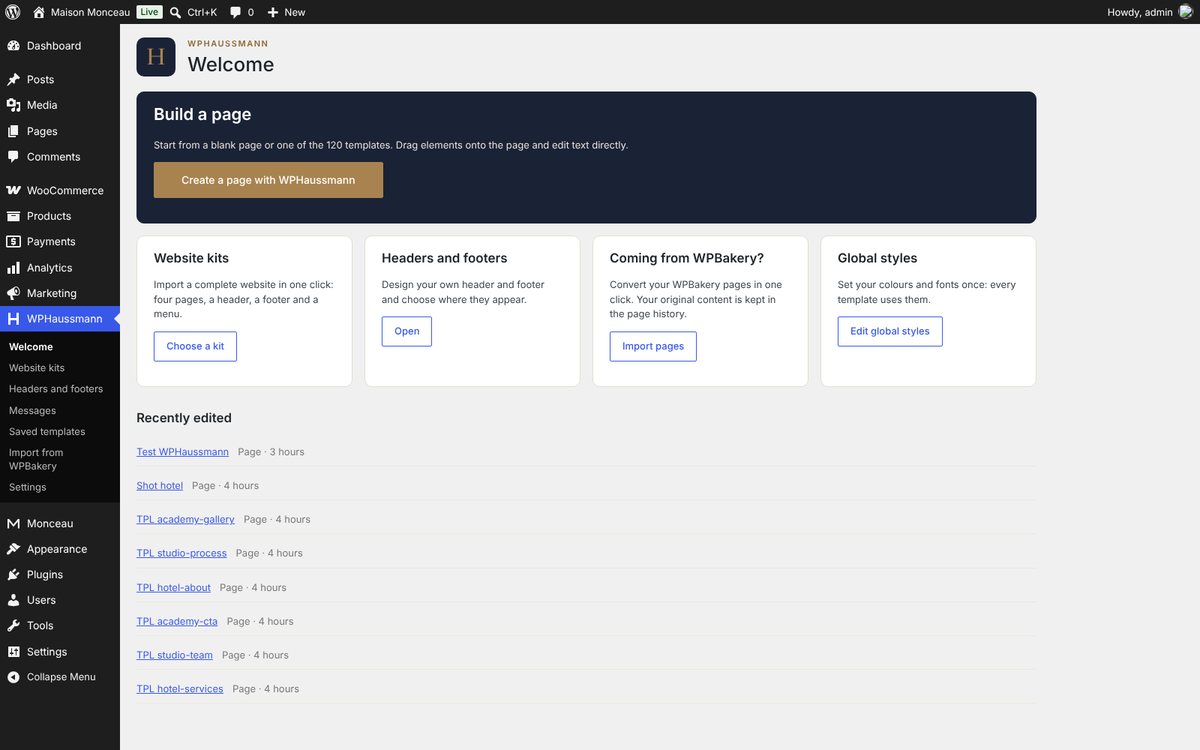
01What is in the package
| File or folder | What it is |
|---|---|
wphaussmann.zip | The plugin. This is the file you install in WordPress. |
documentation/ | This guide. Open documentation/index.html in your browser. |
licensing/ | GPL licence, licences of the icons and fonts, sources of the photographs. |
README.txt | A one-page quick start. |
02Requirements
- WordPress 6.6 or later (tested up to 7.1).
- PHP 7.4 or later (tested up to 8.4).
- Any theme: classic themes and block themes both work.
- WooCommerce is optional. The shop elements appear when it is active.
03Installation
- In your WordPress dashboard, go to Plugins › Add New Plugin › Upload Plugin.
- Choose
wphaussmann.zip, click Install Now, then Activate. - A WPHaussmann menu appears in the dashboard. Its welcome page links to everything below.
04Your first page
- Open Pages › Add New Page (or any existing page).
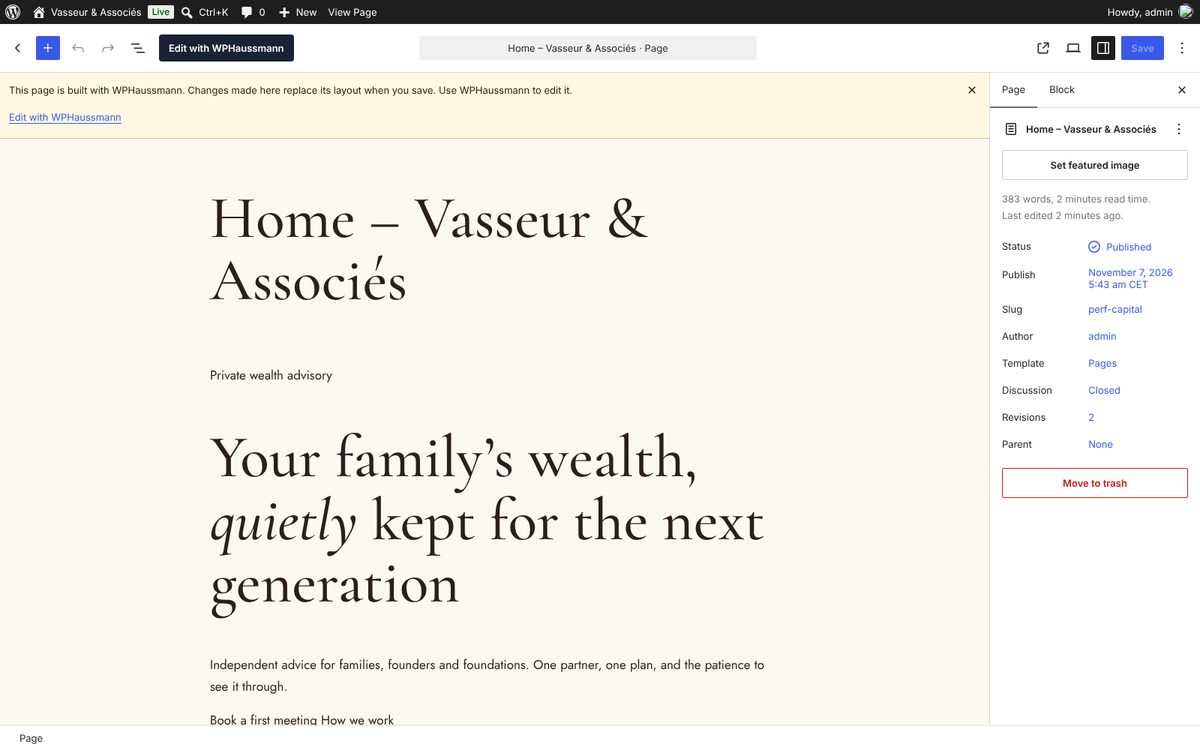
- Click Edit with WPHaussmann at the top of the WordPress editor. In the page list, the same link appears under each page title.
- The editor opens on your page. Click Templates to start from a ready-made page, or Add a section to choose a column layout.
- Click Publish (or Save draft). Ctrl + S also saves.
05The visual editor
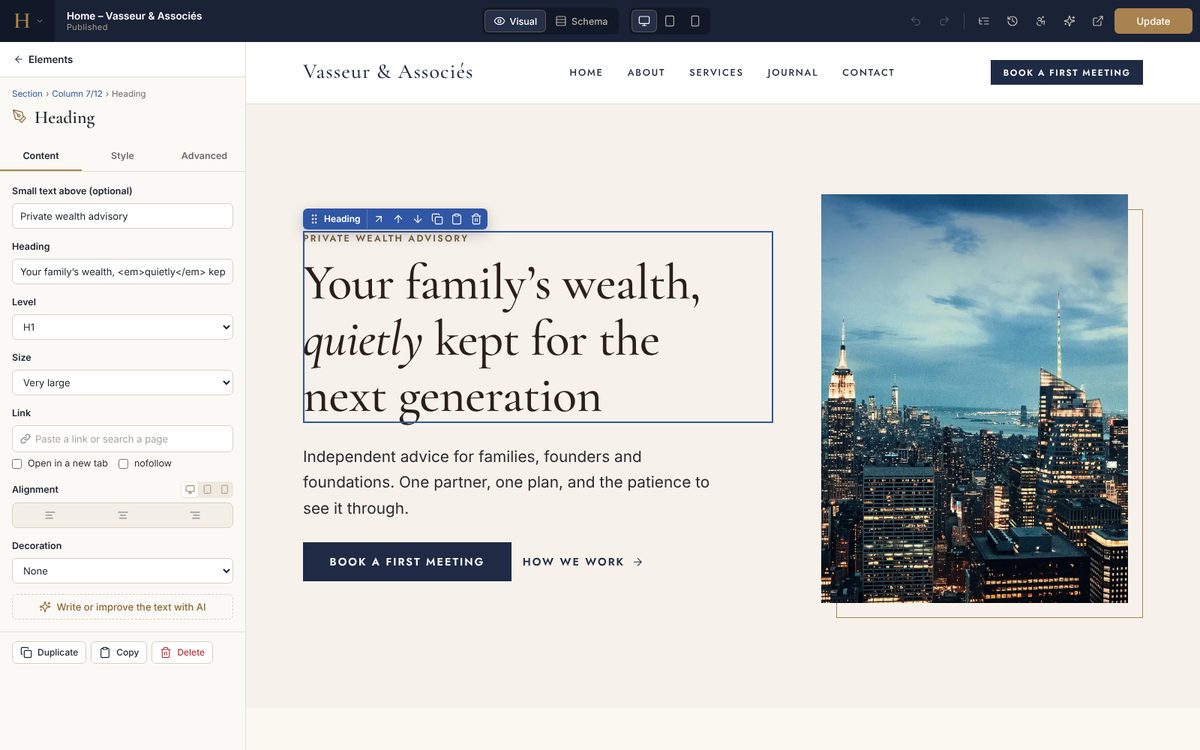
The editor shows your real page, with your theme, at full size. What you see is what visitors will see.
The top bar
- H menu (left): exit to the dashboard, open the WordPress editor, view the page, save the page as a template, keyboard shortcuts and settings.
- Visual / Schema: switch between the page itself and the block view (see the schema view).
- Computer, tablet, phone: preview and edit each screen size.
- Undo, redo, Navigator (the tree of the page), Page history, Accessibility check, AI assistant, Preview and Publish / Update.
The side panel
- Add: every element, by family, with a search field. Drag an element onto the page, or click it to add it at the end.
- Page: title, address, layout, featured image, meta description, custom CSS and JavaScript of the page.
- Styles: the global colours and fonts of the site (see global styles).
- When something is selected, the panel shows its settings in three tabs: Content, Style and Advanced.
Working on the page
- Click an element to select it; a breadcrumb at the top of the panel takes you to its column or section.
- Type directly in headings, texts and buttons: the text is edited on the page.
- Drag an element by its handle to move it, into another column or another section.
- The small toolbar of the selected element moves it up or down, selects its parent, duplicates, copies and deletes it.
- Between sections, the + button adds a new section with the column layout you choose.
Keyboard shortcuts
| Keys | Action |
|---|---|
| Ctrl + S | Save |
| Ctrl + Z / Ctrl + Shift + Z or Ctrl + Y | Undo / redo |
| Ctrl + D | Duplicate the selected element |
| Ctrl + C / Ctrl + V | Copy / paste elements, also between pages and between sites |
| Delete | Delete the selected element |
| Ctrl + Shift + L | Show or hide the navigator |
| Ctrl + Shift + M | Switch between the visual and schema views |
| Esc | Select the parent element; close a window |
On a Mac, use Cmd instead of Ctrl.
06The schema view
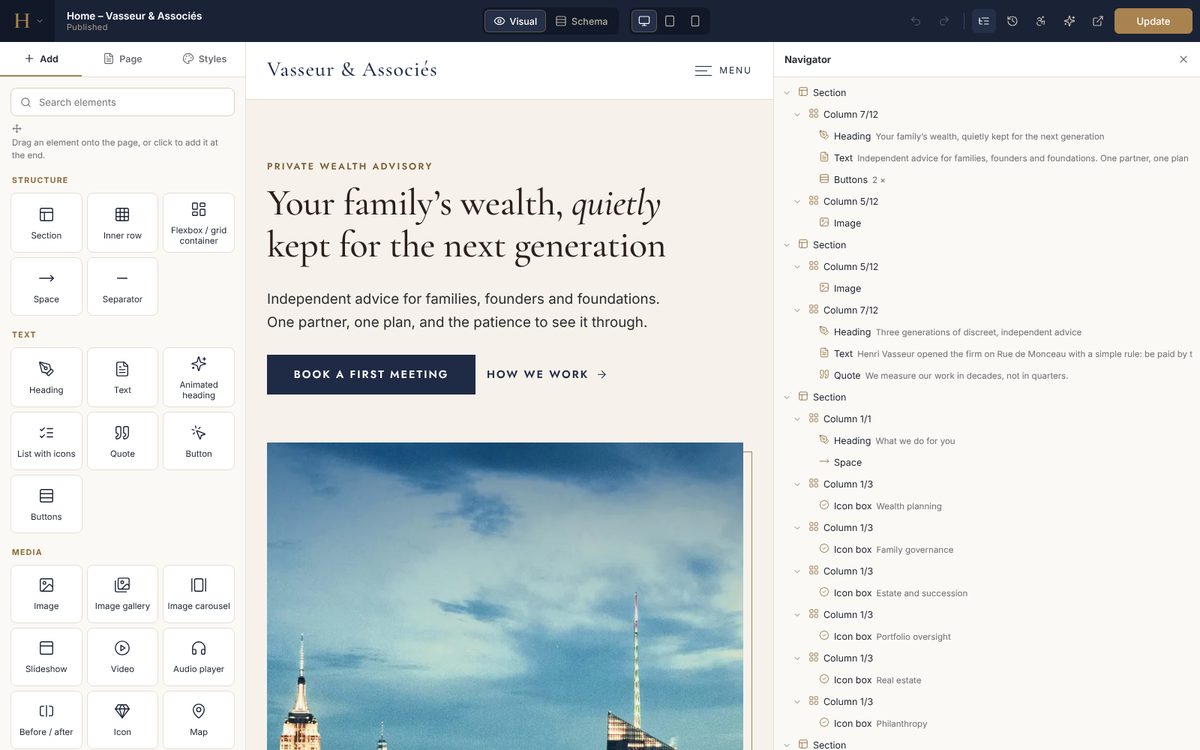
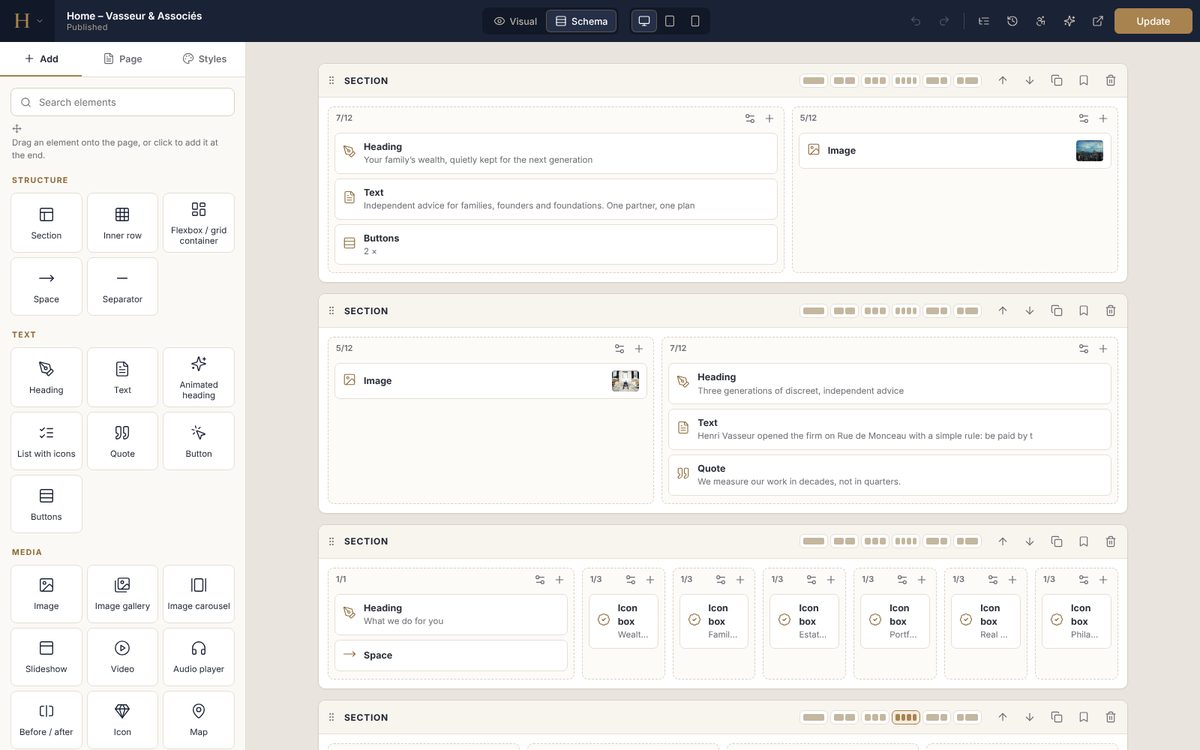
The schema view shows the page as blocks: sections, rows, columns and elements with a short summary of their content, like the back-end editor of classic page builders. It is the quickest way to reorganise a long page, and it works even when a theme cannot show the page in the visual editor.
07The 67 elements
| Family | Elements |
|---|---|
| Structure | Section, Column, Inner row, Flexbox / grid container, Space, Separator |
| Text | Heading, Text, Animated heading, List with icons, Quote, Button, Buttons |
| Media | Image, Image gallery, Image carousel, Slideshow, Video, Audio player, Before / after, Icon, Map |
| Interactive | Tabs, Accordion, FAQ (with structured data for search engines), Toggle, Countdown, Counter, Progress bars, Chart |
| Marketing | Call to action, Icon box, Pricing plan, Testimonials, Client logos, Team member, Message box, Star rating |
| Site content | Post grid (with filter and "load more"), Post carousel, Portfolio (with filter), Recent posts, Breadcrumbs, Page title and details |
| Forms and code | Contact form, Form from another plugin, Shortcode, HTML code, JavaScript code |
| Social | Social icons, Share buttons, Embed |
| WooCommerce | Product grid, Featured product, Product categories, Add to cart button, Products on sale, Best sellers, Featured products, Shop page part |
| WordPress | WordPress widget, Widget area |
| Header and footer | Logo, Menu (with a drawer on phones), Search, Cart icon, Copyright |
The contact form
Fields are set in the element: text, email address, telephone, number, date, drop-down list, checkbox and paragraph, each half or full width, with an optional consent box. Messages are e-mailed to the addresses you choose (by default the site address in Settings › General) and kept in WPHaussmann › Messages. Robots are stopped without a captcha: hidden field, signed form, minimum filling time and a limit per visitor.
08Settings every element has
Besides its own settings, every element has the same Style and Advanced settings:
- Spacing and box: margin, padding, background (colour, gradient, image or video, with an overlay), border, rounded corners, shadow, maximum width.
- In a flexbox container: width, grow, order and alignment of the element.
- Entrance animation: fade, fade from a side, zoom or curtain reveal, with a delay. Visitors who ask their device for less motion see no animation.
- Visibility: hide on computers, tablets or phones.
- Display conditions: show only to logged-in or logged-out visitors, and only from or until a date and time (for a promotion, for example).
- Attributes: CSS id, CSS classes and custom CSS. In custom CSS, the word
selectortargets the element:selector { border-radius: 12px; }.
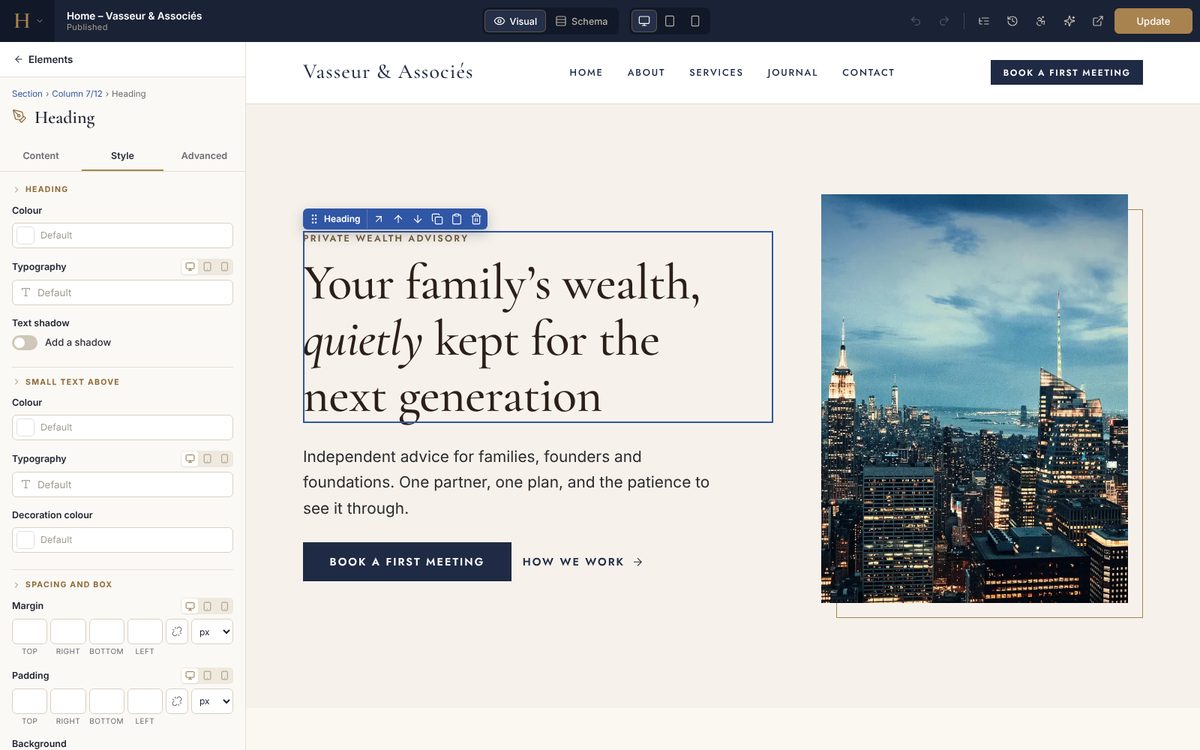
Sections, columns and containers also have a text colour, a heading colour and a link colour: every element inside follows them, which is the quickest way to build a dark section. Cards with their own light background keep dark text.
09Phones and tablets
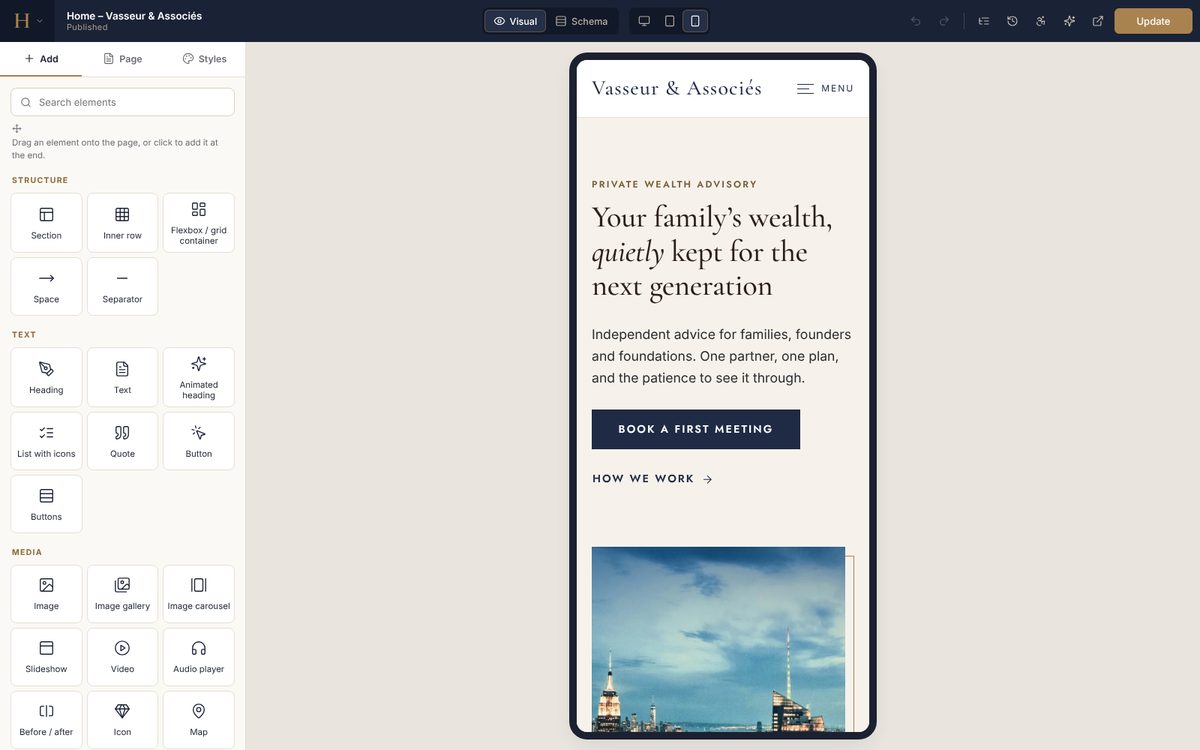
Click the tablet or phone icon in the top bar. The page shrinks to that width, and settings marked with a small screen icon now apply to that size only: column widths, spacing, font sizes, alignment, number of columns or of slides per view. Columns stack on phones automatically; the "Reverse column order on mobile" option of a section puts the image above or below the text as you wish.
10Templates and kits
WPHaussmann includes 120 templates in six kits. They follow your global colours and fonts, so they always match your site.
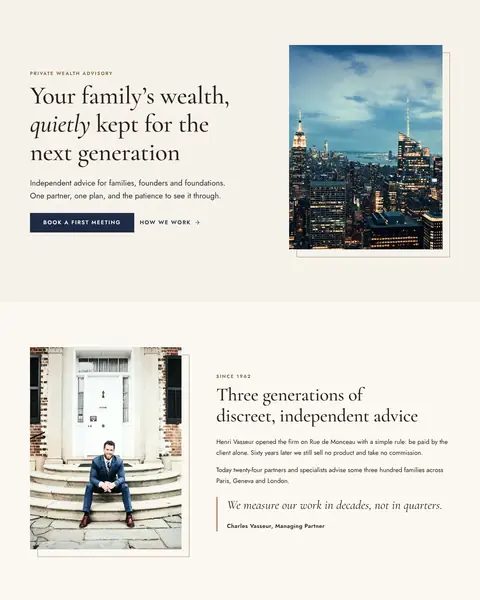
Consulting and finance
Wealth advisers, consultancies, law and accounting firms.
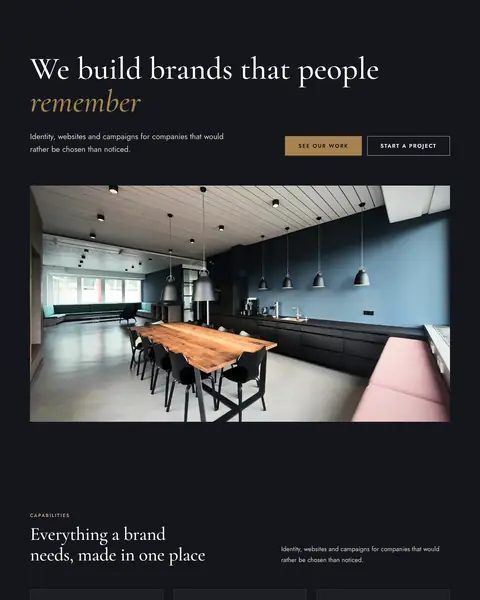
Creative agency
Branding and design studios, in a dark style.
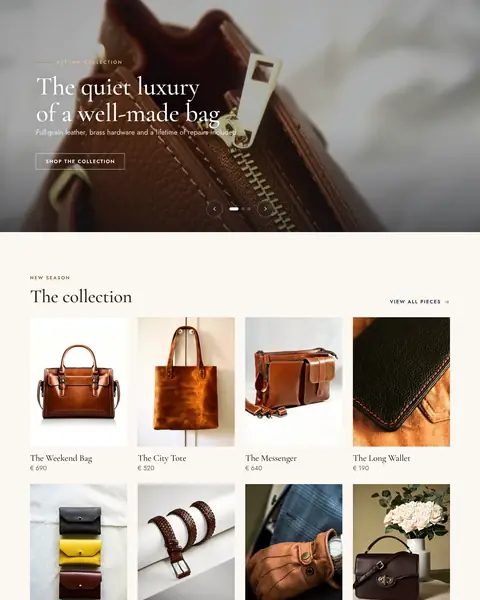
Boutique
Leather goods, fashion, crafts and luxury shops.
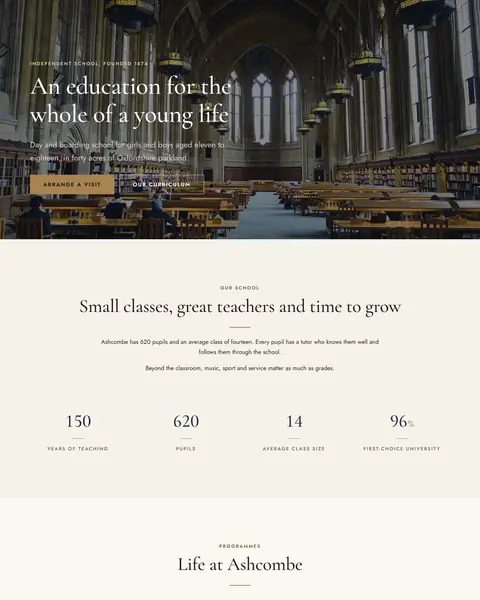
School and training
Schools, colleges and training centres.
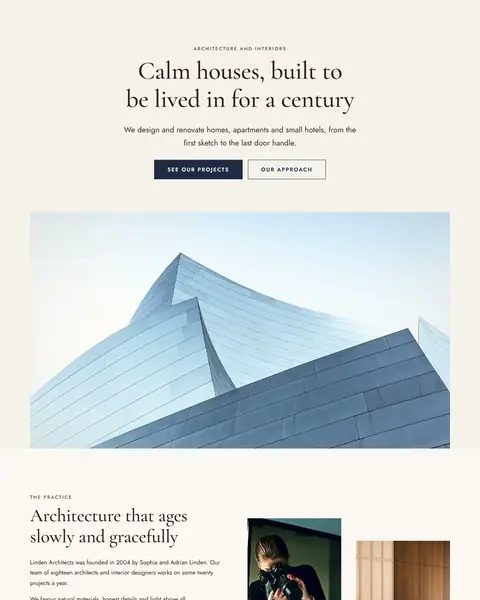
Architecture and interiors
Architects, interior designers, builders.
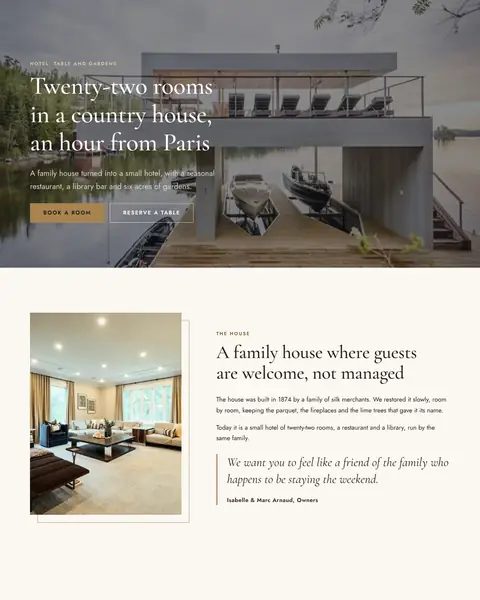
Hotel and restaurant
Small hotels, guest houses and restaurants.
Each kit has 4 full pages (home, about, services, contact), 14 sections (hero, about, services, features, key figures, process, team, testimonials, pricing or products, gallery, call to action, questions, contact, blog), a header and a footer.
Importing a whole kit
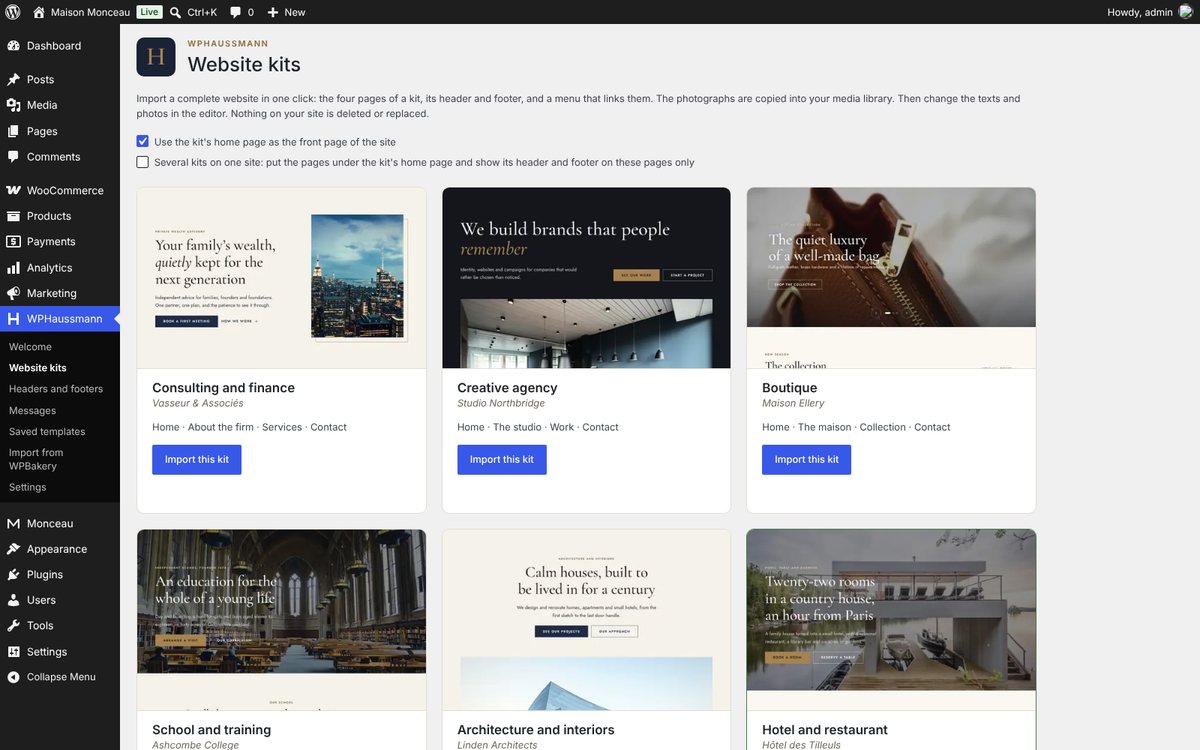
To start a new site quickly, import a complete kit in one click from WPHaussmann › Website kits. WPHaussmann creates:
- the kit's four pages, published, with the "Full width" layout;
- its header and footer, shown on the whole site;
- a menu with the four pages, already placed in the header;
- the links between them: "Contact us", "Book a room" or "See our work" lead to the right page, and the phone number and email buttons call and write.
The photographs are copied into your media library. Nothing on your site is deleted or replaced: if you already have a header for the entire site, both apply equally, so turn one of them off in Headers and footers. Two options:
- Use the kit's home page as the front page of the site (on by default).
- Several kits on one site: the pages are placed under the kit's home page (for example
/hotel/the-house/), and the kit's header and footer appear on these four pages only. This is how the live demo is built.
Inserting a template
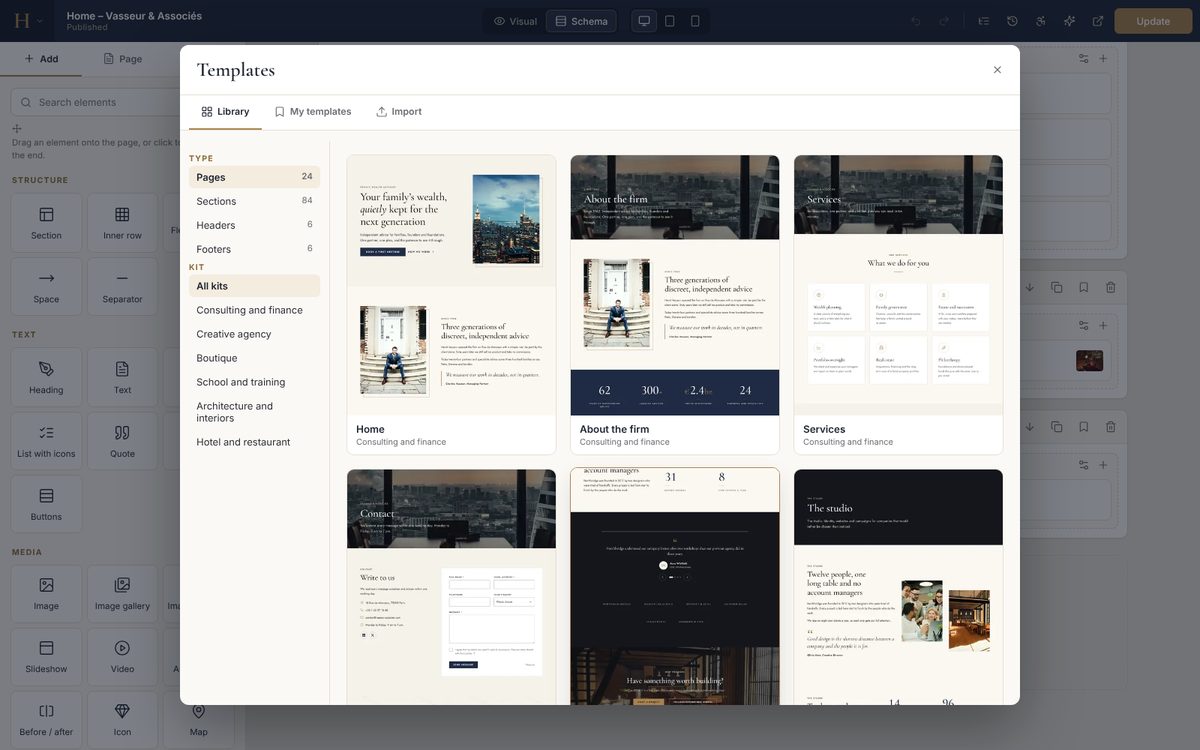
- Click Templates on the empty page, at the bottom of the page or in the schema view.
- Choose the type (pages, sections, headers, footers), filter by kit or by kind of section, and click a template.
- A section is added at the end of the page. A full page replaces the content of an empty page; on a page that already has content, WPHaussmann asks whether to replace it or add the template after it.
The photographs of a template are copied into your media library the first time you insert it. WordPress then creates the smaller sizes, so phones download small photos, and you can replace a photo like any other image. You can turn this off in WPHaussmann › Settings › General.
Your own templates
- Save a section with Save as template in its toolbar or its settings, or the whole page with Save the page as a template in the H menu. Your templates appear under Templates › My templates, on every page.
- WPHaussmann › Saved templates lists them, with an Export link (a .json file) and an Import form to use them on another site.
- Show a saved template anywhere with its shortcode, for example
[wphm_template id="12"], in a widget, a block or another builder.
11Headers and footers
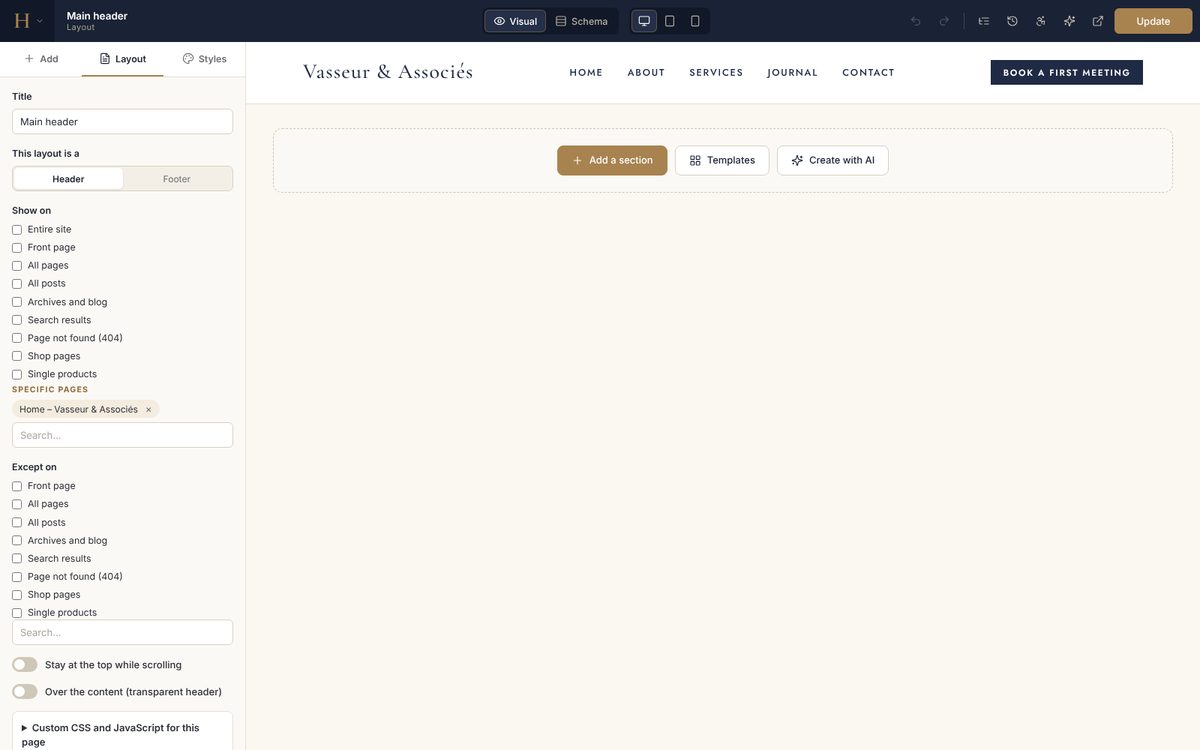
Build your header and footer with the same editor, using the Logo, Menu, Search, Cart icon and Copyright elements, then choose where they appear. They replace the header and footer of your theme, with classic themes as well as block themes.
- Go to WPHaussmann › Headers and footers › New header (or New footer).
- Insert one of the six header templates, or build your own.
- In the Layout panel, choose where it shows: entire site, front page, all pages, all posts, archives, search results, page not found, shop pages or specific pages. Exceptions are possible.
- Options: stay at the top while scrolling and over the content (a transparent header over the first section).
When several headers apply to a page, the most precise one wins: a specific page wins over "All pages", which wins over "Entire site".
12Global styles
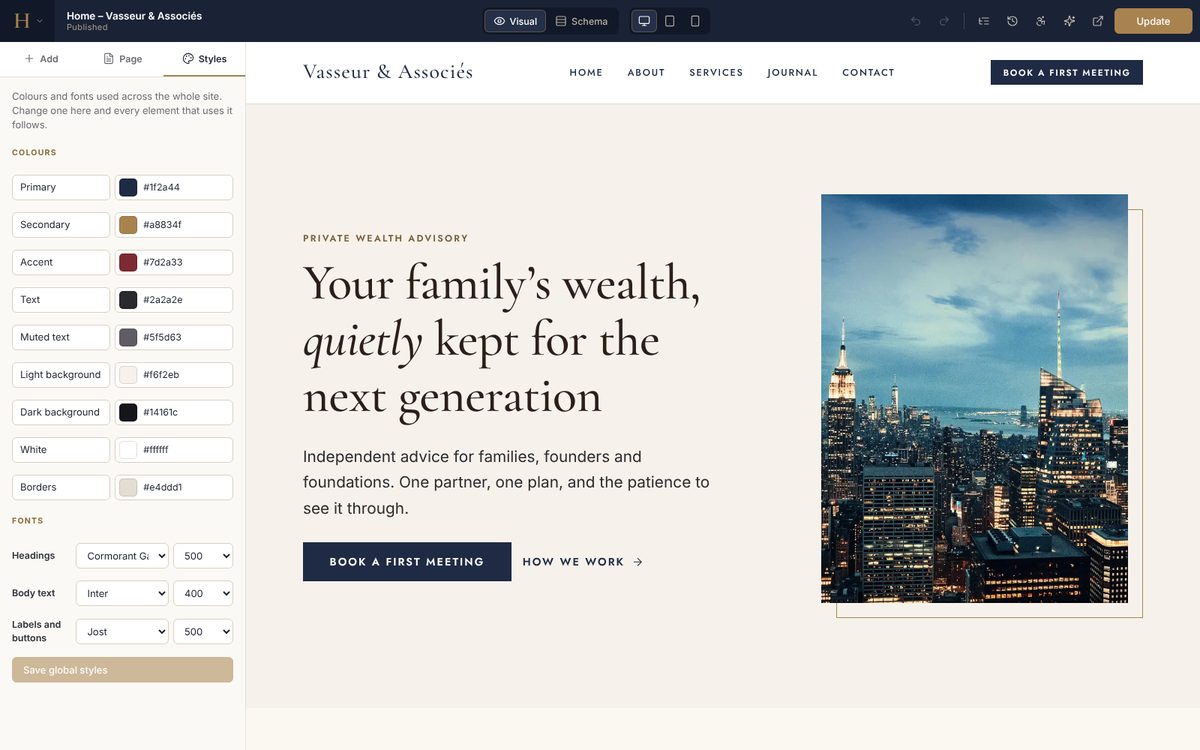
Open the Styles tab of the editor, or WPHaussmann › Settings › Global styles. Set nine colours (primary, secondary, accent, text, muted, light, dark, white, border) and three fonts (headings, body text, labels and buttons). Every element and template uses them by reference: change the primary colour once and the whole site follows. Text on coloured buttons switches between white and dark automatically, so it stays readable whatever colour you choose.
Four fonts are included and served from your own site: Cormorant Garamond, Playfair Display, Inter and Jost. You can also use the fonts of your theme.
13Page layouts
| Layout | What it shows |
|---|---|
| Theme | The usual template of your theme, with its title and sidebar. Your content is placed inside. |
| Full width | The header and footer of the theme (or yours), and your content across the full width. This is the default for new pages. |
| Canvas | Only your content, without the theme's header and footer. Headers and footers built with WPHaussmann still appear when they apply. |
Choose it in the Page panel; the editor shows the change at once. "Hide the page title" removes the theme's title when your content has its own.
14AI assistant
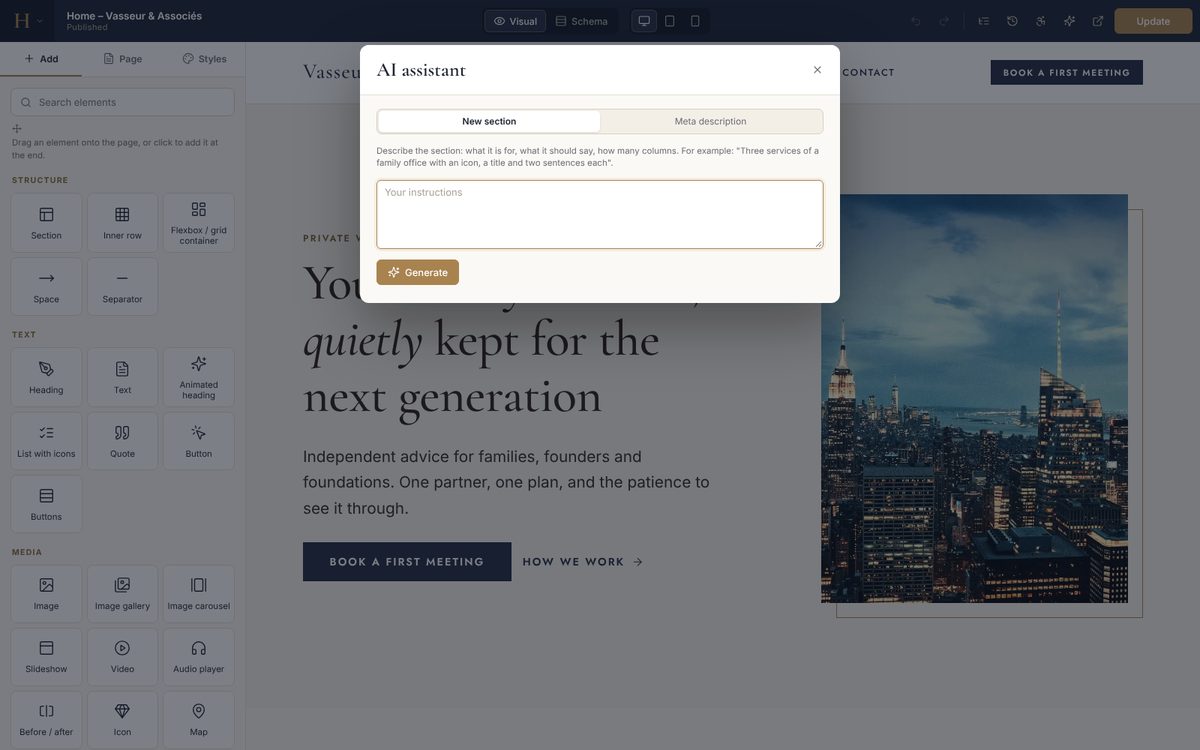
The assistant writes and rewrites texts, translates, writes custom CSS, writes a meta description and creates whole sections from a description. It is optional and uses your own account:
- WordPress AI: on WordPress 7.0 and later, the AI services connected in your WordPress settings, with no key in WPHaussmann.
- OpenAI, Anthropic or Google: paste your API key in WPHaussmann › Settings › AI assistant. You pay the provider directly for what you use.
Requests are sent from your server, never from visitors' browsers; the key is never shown in the page. Each user can send 30 requests per minute.
15Importing from WPBakery
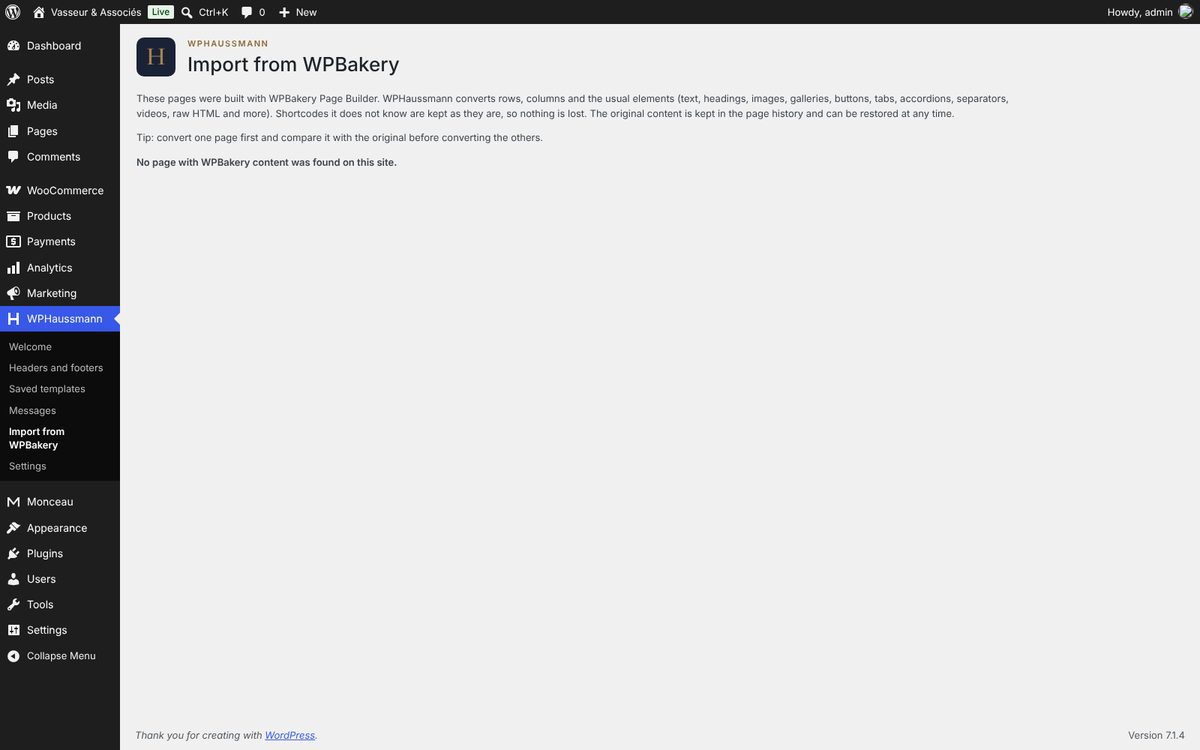
WPHaussmann › Import from WPBakery lists the pages built with WPBakery Page Builder. Select them and click Convert. Rows, inner rows and columns (with their widths and offsets), design options (spacing, background, border) and common elements (text, headings, images, galleries, buttons, tabs, accordions, separators, videos, raw HTML and more) become WPHaussmann elements. Shortcodes WPHaussmann does not know are kept as Shortcode elements, so nothing is lost. The original content is kept in the page history and can be restored at any time.
16History, copy and paste, accessibility
- Page history: every save keeps a version. Restoring one puts it back in the editor; nothing changes on your site until you save.
- Automatic backup: while you work, WPHaussmann keeps a backup. If your browser closes before you save, the editor offers to restore it next time.
- Copy and paste: copy an element or a section and paste it on another page, or on another site that uses WPHaussmann.
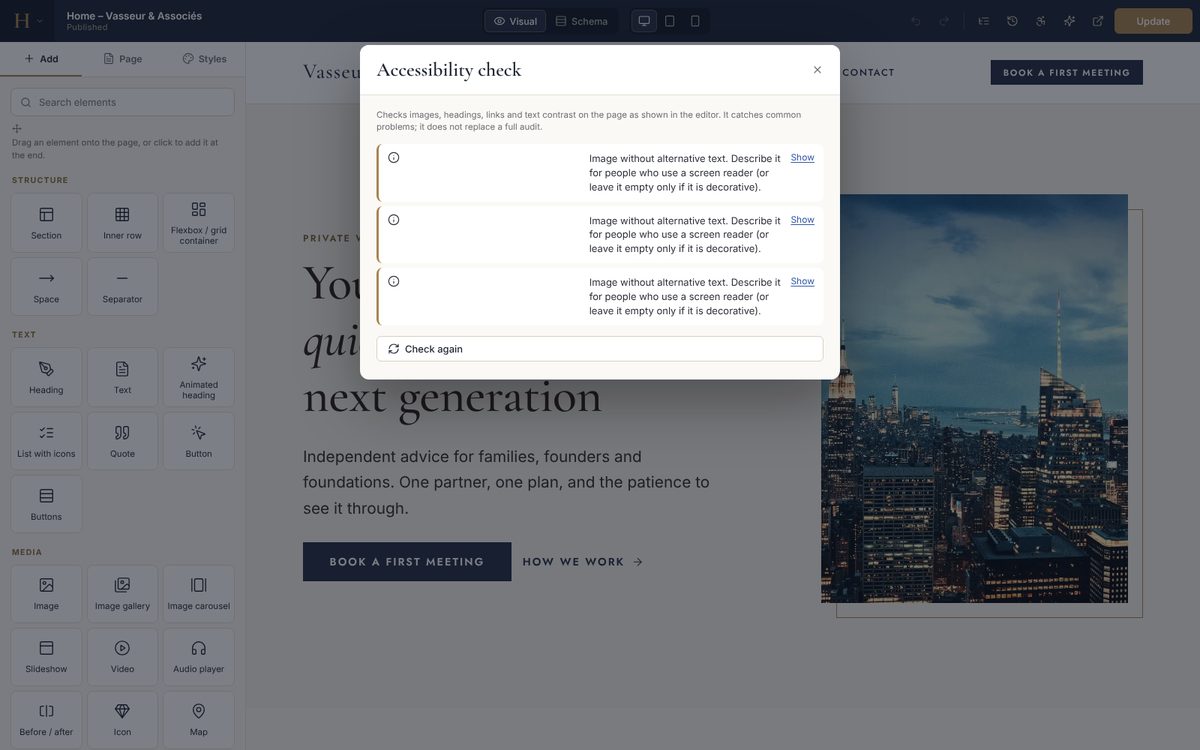
- Accessibility check: lists images without alternative text, headings in the wrong order, several main headings and texts with low contrast. Click Show to select the element concerned.
17Settings
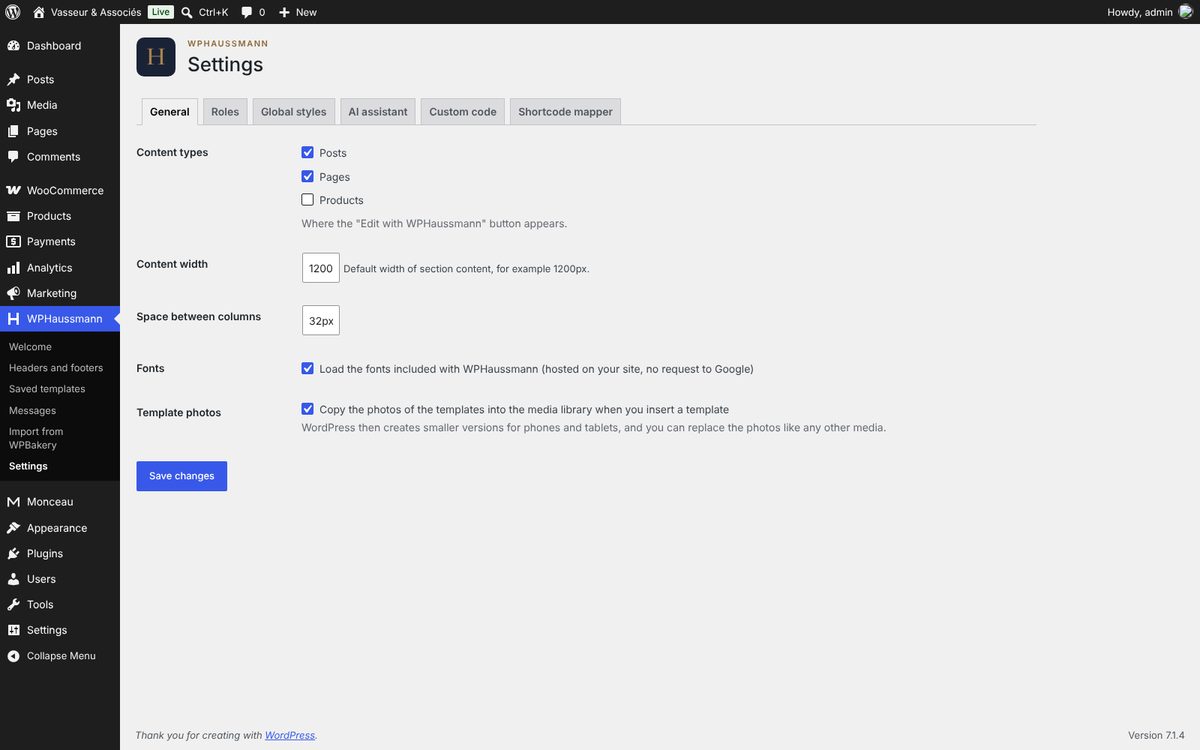
| Tab | What you set |
|---|---|
| General | Content types that can use WPHaussmann, default content width, space between columns, included fonts, copying template photos into the media library. |
| Roles | Which roles may use the editor; for each role, elements to hide, and whether the Advanced tab and the code elements are available. |
| Global styles | Colours and fonts (also in the editor). |
| AI assistant | Provider, key and model. |
| Custom code | CSS and JavaScript for the whole site. |
| Shortcode mapper | Turn the shortcode of any plugin into an element with its own settings: one line per setting, name | label | type | options. |
18Languages
The editor and the dashboard pages are translated into English, French, Spanish, Brazilian Portuguese, Simplified Chinese and Arabic. WPHaussmann uses the language of your WordPress profile. Arabic switches the editor and your pages to right-to-left. To add a language, translate languages/wphaussmann.pot with a tool such as Poedit and save the files in wp-content/languages/plugins/. The texts of the templates are in English: replace them with your own.
19Speed and privacy
- Only the CSS and JavaScript of the elements used on a page are loaded. The CSS is placed in the page, so it adds no request.
- No jQuery on the front end. Scripts are deferred.
- The first photo of the page loads first. Other photos load when they come near the screen.
- Fonts are served from your site and preloaded. No request is sent to Google Fonts.
- Maps load only after the visitor clicks "Show the map" (this can be turned off), and videos only when the visitor presses play.
- WPHaussmann sends no data to us.
On our test server, pages built with the templates score 99 for performance in Lighthouse on computers and 75 to 92 on phones depending on the kit, with WordPress and the theme alone. Your result depends on your hosting, your theme and your other plugins.
20If you deactivate WPHaussmann
Every page built with WPHaussmann keeps a clean HTML copy of its content in WordPress: titles, texts, images, lists and links stay visible, in a simple layout. If the page is later edited in the WordPress editor, visitors see that version, and the WPHaussmann editor warns you before replacing it.
Deleting the plugin removes its settings only. Your pages, headers, footers, saved templates, messages and images are kept.
21For developers
Add your own element
add_action( 'wphm_register_elements', function () {
	wphm_register_element( array(
		'type'     => 'my_notice',
		'title'    => __( 'Notice', 'my-plugin' ),
		'category' => 'marketing',
		'icon'     => 'line:info',
		'params'   => array(
			array( 'name' => 'text', 'type' => 'text', 'label' => 'Text', 'default' => 'Hello' ),
			array( 'name' => 'color', 'type' => 'color', 'label' => 'Colour', 'tab' => 'style',
			       'selector' => '{{WRAPPER}} .my-notice', 'property' => 'color' ),
		),
		'render'   => function ( $s ) {
			return '<p class="my-notice">' . wphm_inline( $s['text'] ) . '</p>';
		},
		'clean'    => function ( $s ) {
			return '<p>' . wphm_inline( $s['text'] ) . "</p>\n";
		},
	) );
} );
The element receives the common settings (spacing, background, animation, visibility, conditions, custom CSS) automatically. render gives the HTML for visitors and the editor; clean gives the simple HTML kept in the WordPress content. Parameter types: text, plain, textarea, richtext, number, slider, select, align, toggle, color, image, gallery, icon, link, dimensions, typography, border, shadow, background, date, code, repeater, post, posts and query.
Hooks
| Hook | Use |
|---|---|
wphm_register_elements (action) | Register your elements. |
wphm_saved (action) | After a page is saved: $post_id, $data. |
wphm_form_sent (action) | After a contact form is sent: fields, page, element. |
wphm_content_query_args (filter) | Change the query of the post grid, post carousel and recent posts. |
wphm_inline_element_css (filter) | Return false to load the CSS of the elements as separate files. |
22Questions
The editor says the page cannot be displayed.
Some themes do not show the page content in the usual way. Choose the "Full width" or "Canvas" layout in the Page panel, or use the schema view, which works with every theme.
My changes do not appear on the site.
Check that you clicked Update (not only Save draft), then empty the cache of your caching plugin or hosting.
Can I use WPHaussmann and the WordPress editor on the same site?
Yes. Each page is edited with one or the other. Pages that were never opened in WPHaussmann are not affected.
Does it work with WooCommerce?
Yes: shop elements, a cart icon for your header, and you can enable WPHaussmann for products in the settings.
Can I use it on several sites?
Your Codester licence sets the number of sites. Each site needs its own licence.
23Credits
- Icons: Lucide (ISC License) and Simple Icons (CC0). Brand names and logos belong to their owners.
- Fonts: Cormorant Garamond, Playfair Display, Inter and Jost (SIL Open Font License).
- Photographs: Unsplash (Unsplash License), colour-graded for WPHaussmann. Sources in
licensing/photo-credits.txt. - People, companies and figures in the templates are fictional.
24Support
Write to us through the Codester item page or at contact@ascapital-consulting.com. Please include your WordPress, PHP and WPHaussmann versions, your theme, and the address of the page concerned. Bug fixes are free for every buyer.
25Changelog
1.0.0 (November 2026): first release.